In this article, you’ll learn how to connect your Meta account (business portfolio) and required Facebook Page asset with Omneky in order to begin seeing Meta ad-level reporting and to enable exporting or launching creatives from Omneky to Meta.
Step 1: Prepare Meta ad account aka business portfolio with connected Facebook Page in Meta’s UI.
Your business portfolio is where all your organization’s Meta assets live, such as your Facebook Page, Instagram account, datasets (previously called Meta Pixels), ad accounts, product catalogs, and any other business assets created and used on Meta.
Step 2: Here you can also control who has access to each asset and assign users the necessary permissions to manage them. But first, you must add each asset to your business portfolio and connect them to each other to use them effectively.
Related Articles
Start by going to business.facebook.com and selecting the business you want to connect with.
I. Click the ‘⚙️’ at the bottom left of the screen to get to your business settings.
II. From the same page, click “Pages” under “Accounts” in the menu on the left.
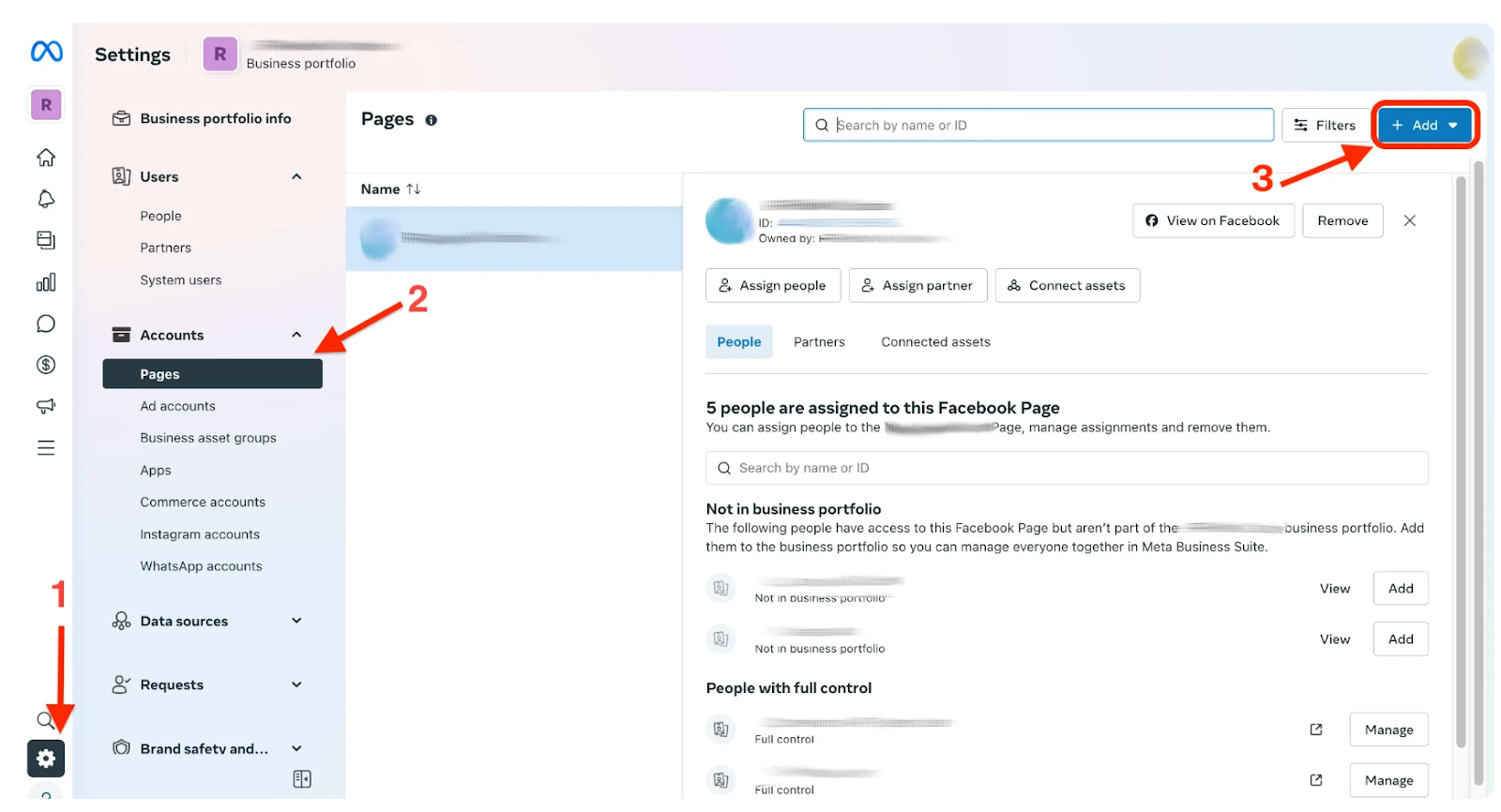
III. Click the “Add” button to open a popup where you can choose between adding an existing Facebook Page, requesting access to a Facebook Page, or creating a new one. Choose the existing Facebook Page option.
IV. In the popup, paste your Facebook Page link into the field and click “Next.”
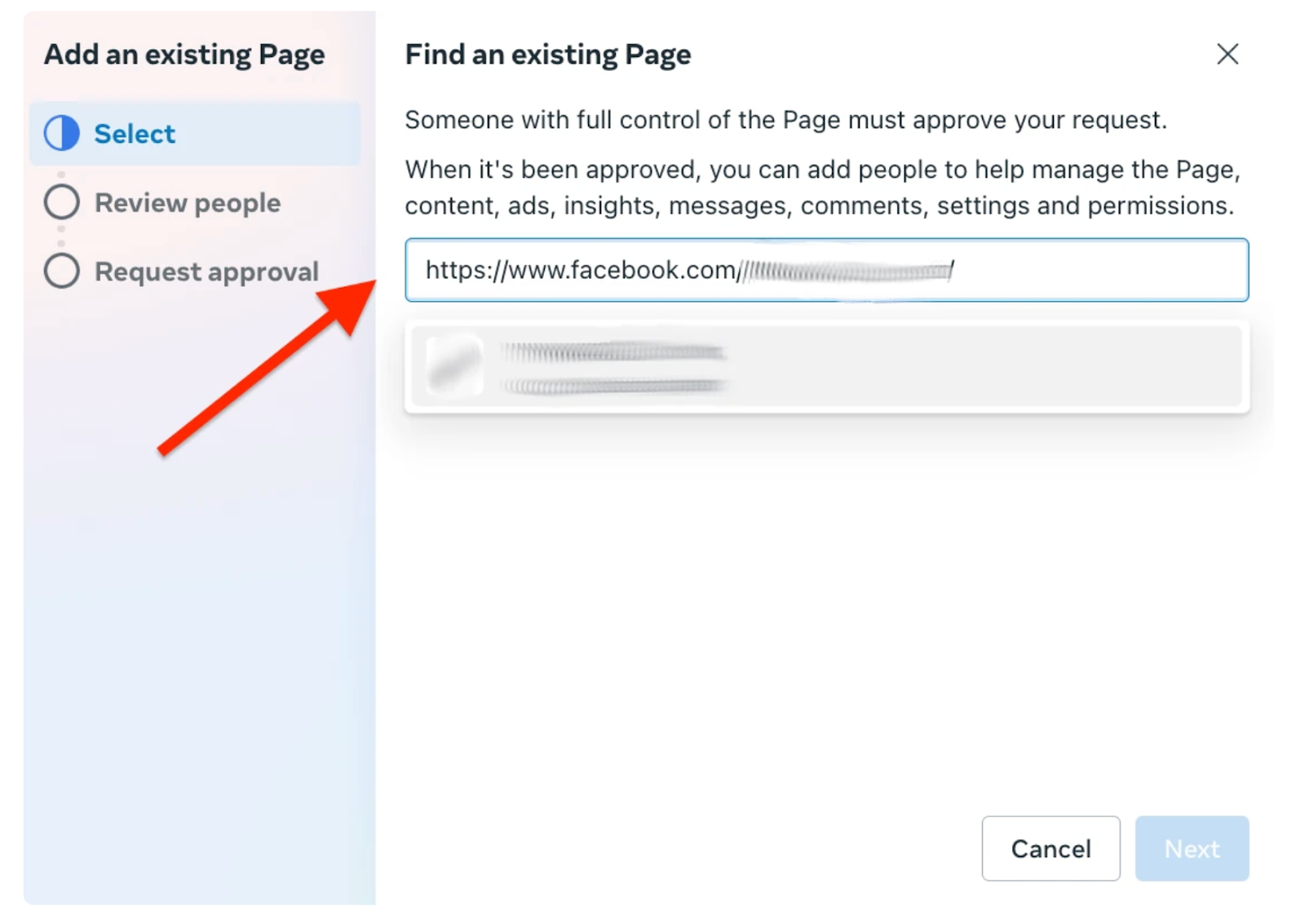
V. In the next step, you can review who else has access to the Page within your business portfolio. If you are the only admin, you can complete the steps to add the Page to your business portfolio.
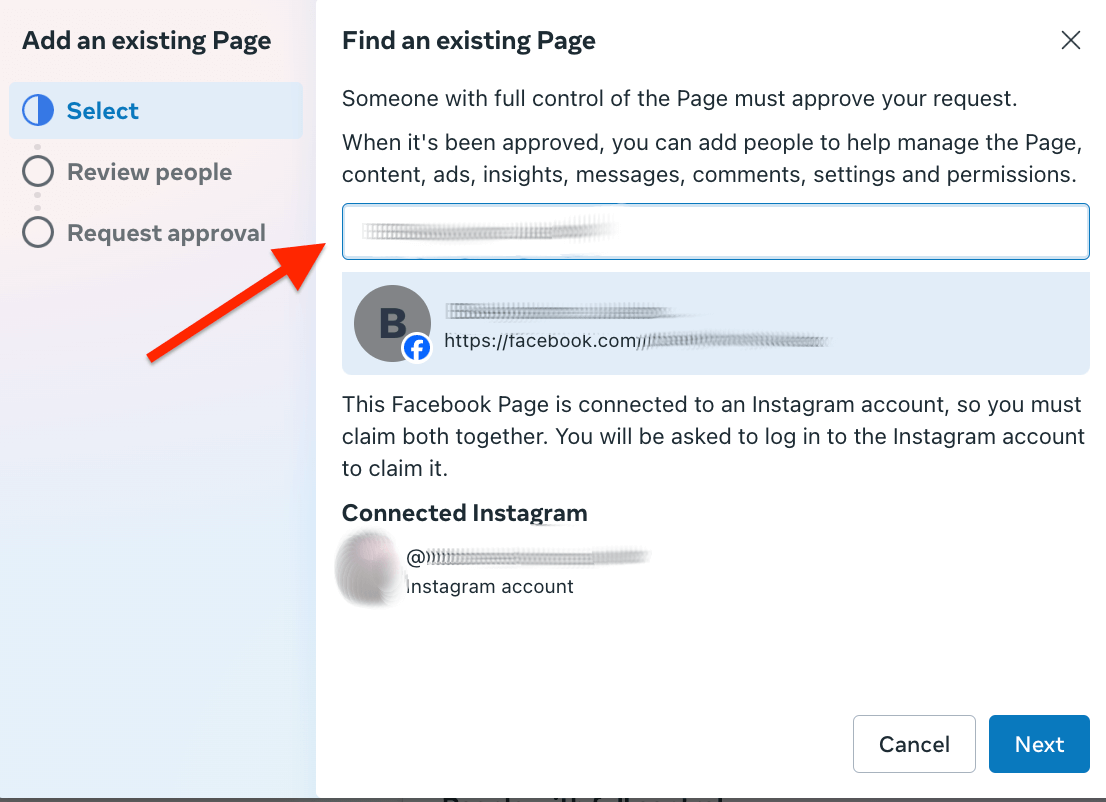
Facebook Pages with multiple admins: Completing these steps will send a request for other Page admins (if there are others) to be invited to join your business portfolio. You will see a list of admins that will be invited if you continue, but you’ll need them to accept before the Page moves to your business portfolio. There is also an option if you’re not ready to invite people just yet but it only buys you a short amount of time before invites are sent to the admins. Complete the steps according to your unique situation and proceed.
VI. You’ll see a confirmation message, and your Page will now be included in the list in the section on the left.
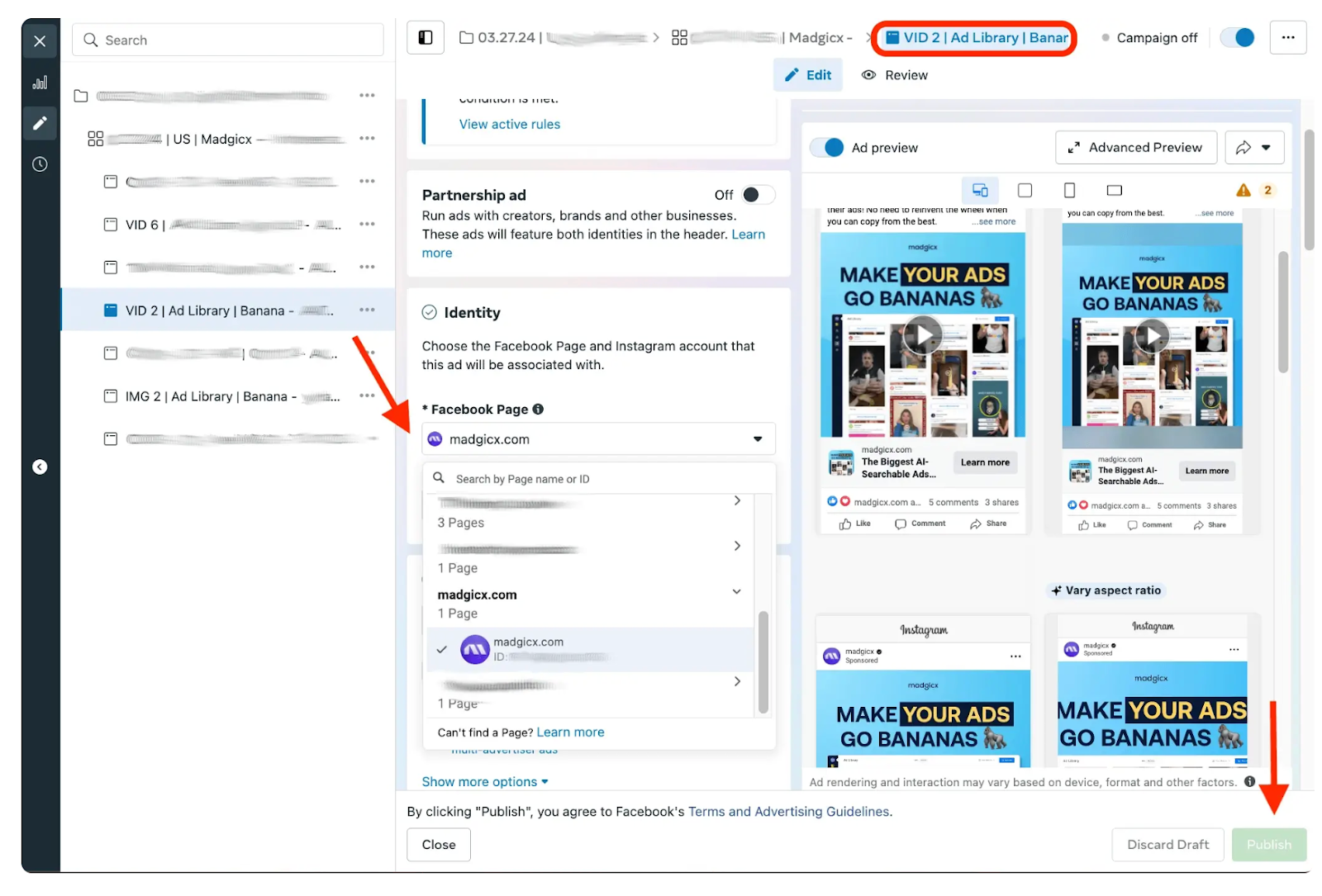
Note: You don’t necessarily have to create a real ad; you can create a test ad or even publish an inactive ad, but you must publish it to connect the Page to your ad account. Do this by clicking the green “Publish” button at the bottom right.
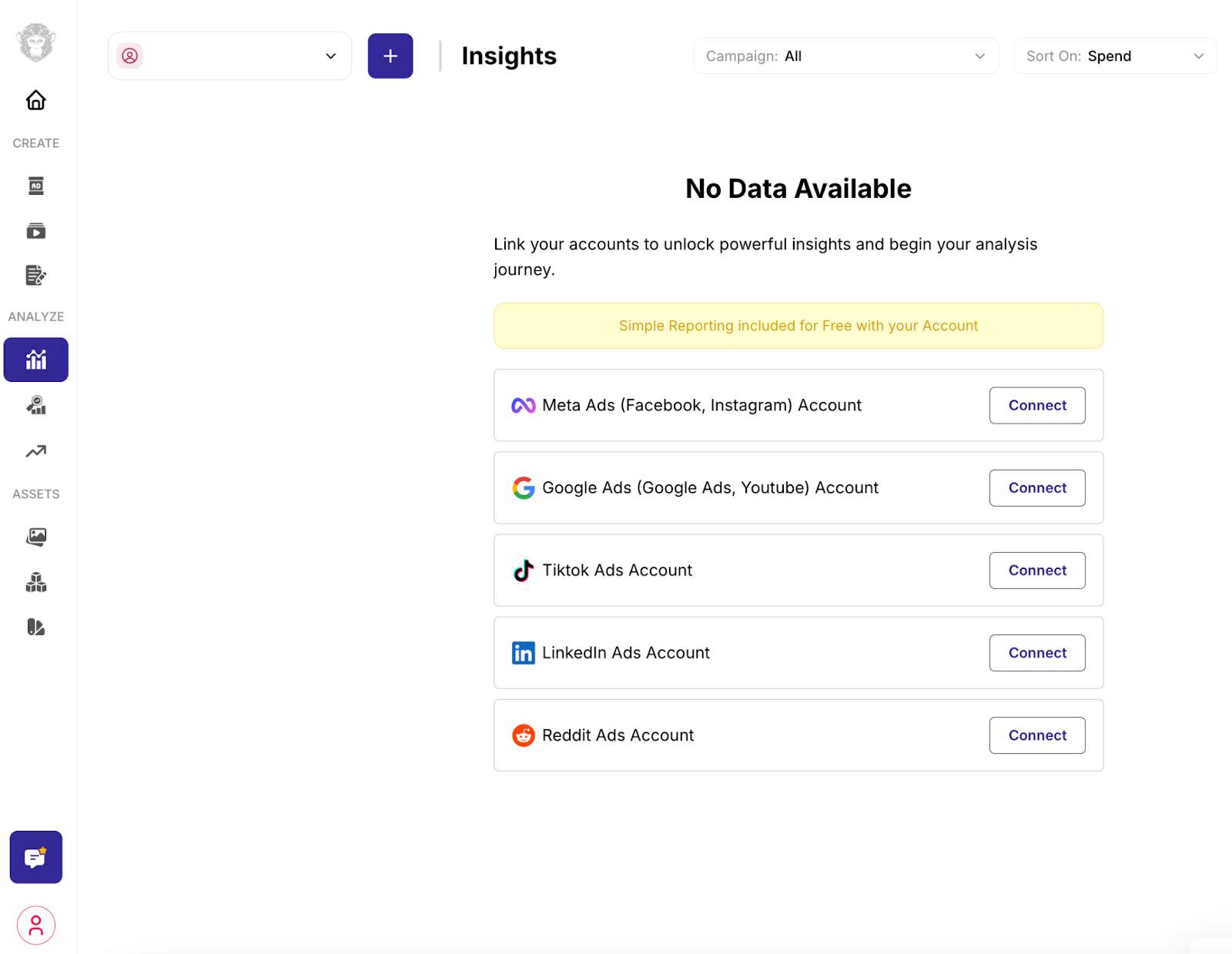
3. Select the Meta business portfolio you’ve been authorized in Meta to connect (such as made an Admin role).
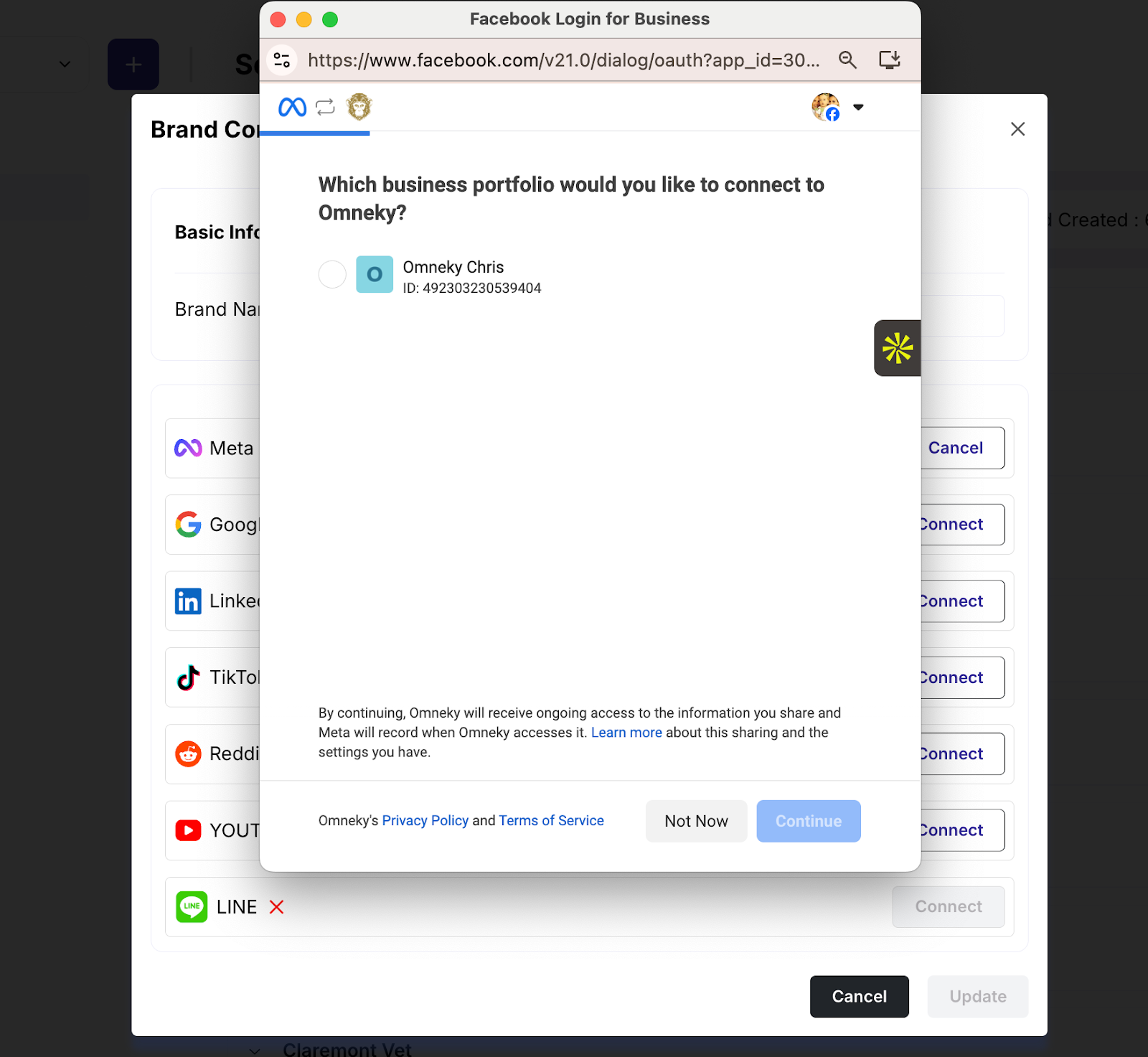
4. Select the Facebook Page from those associated with the Meta business portfolio. If you do not see any available you may need to associate a Facebook Page with the portfolio in Meta Business Manager, and restart this step with refreshed Page associations.
Empower your strategy with AI-driven ad production and real-time insights.